How to Generate Backlog Requirements (RTMs) from Meeting Transcripts in SaaSMap
Capturing accurate requirements from project discussions is one of the most time-consuming aspects of any enterprise implementation. SaaSMap simplifies this process by enabling you to automatically generate backlog requirements and Requirement Traceability Matrix (RTM) entries directly from meeting transcripts. This guide walks you through the step-by-step process of converting raw conversations into structured project data.
Step 1: Navigate to Your Project Backlog
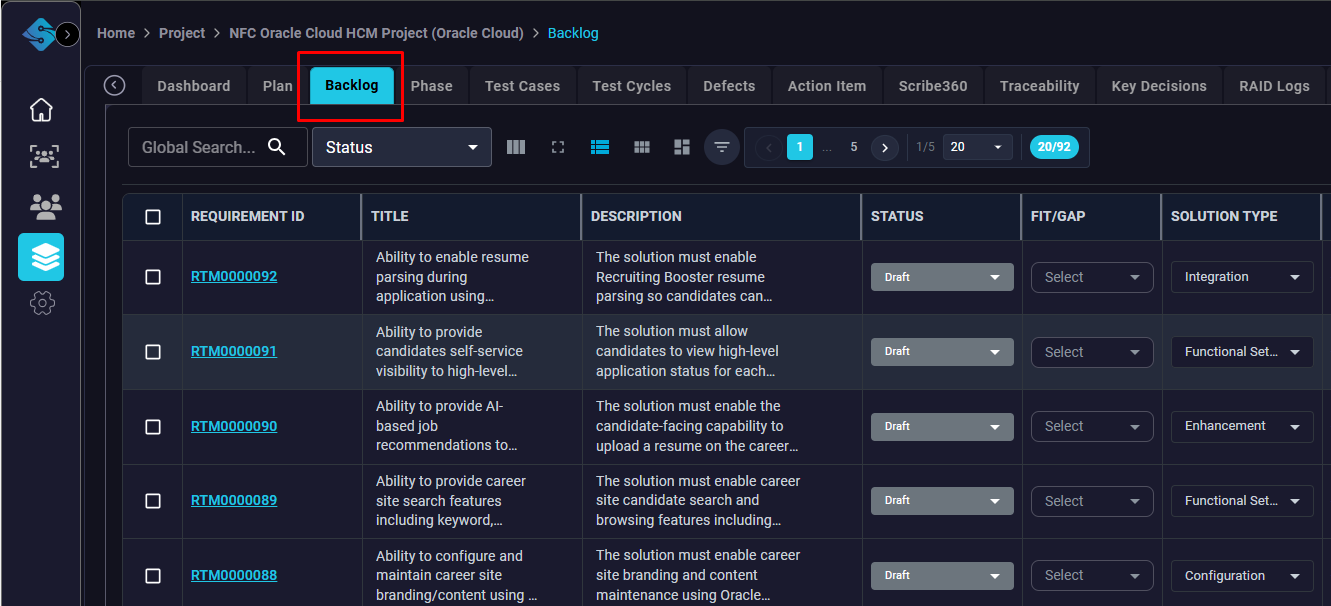
Open the specific project where you intend to generate requirements. From the project dashboard, locate the horizontal navigation menu and click on the ‘Backlog’ tab to access the requirement repository.
Pro Tip: Ensure you are in the correct project environment before starting, as requirements will be mapped to the current project’s hierarchy.
Step 2: Initiate Requirement Creation
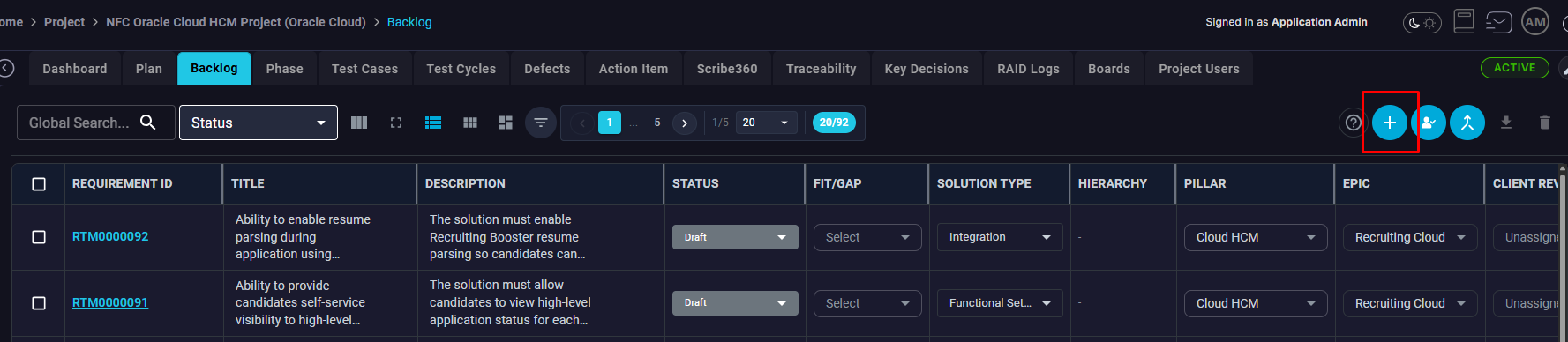
Within the Backlog view, locate the action buttons in the top right corner. Click the ‘+’ (Add) button to open the creation menu and select the ‘Create from Transcript’ option.
Step 3: Configure Generation Settings
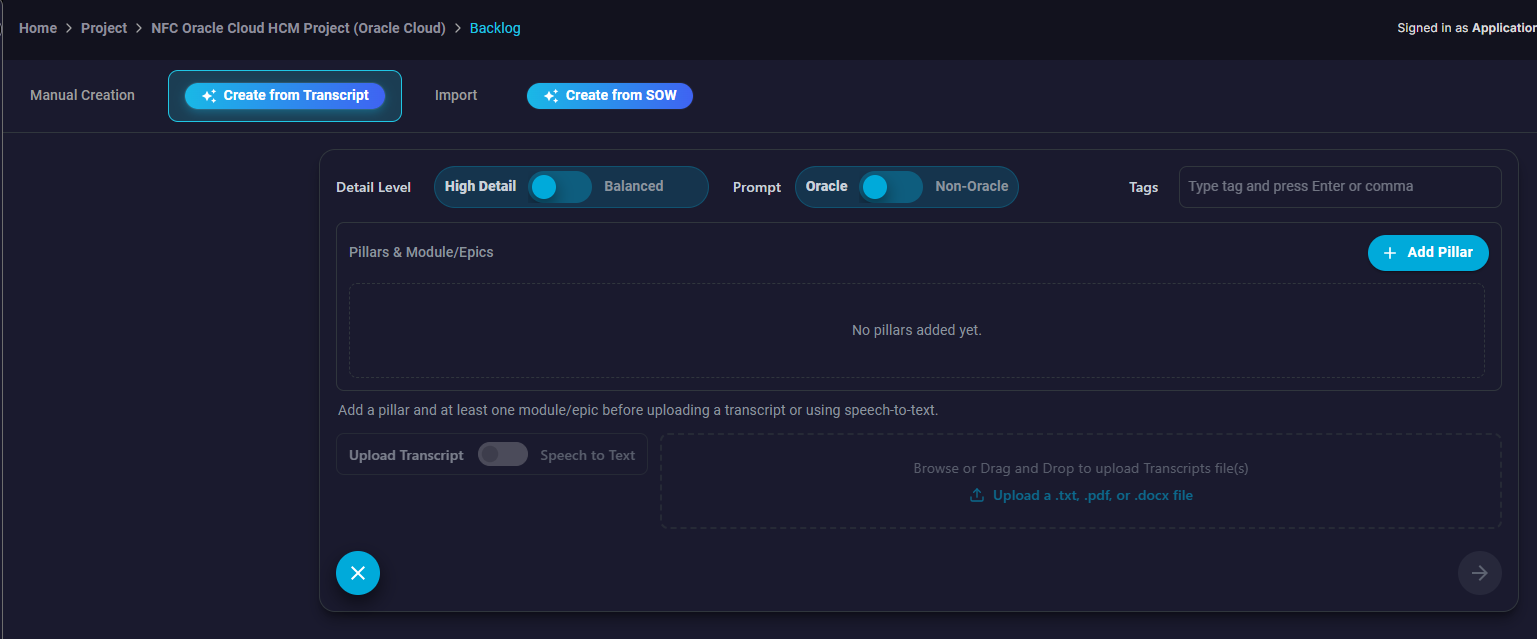
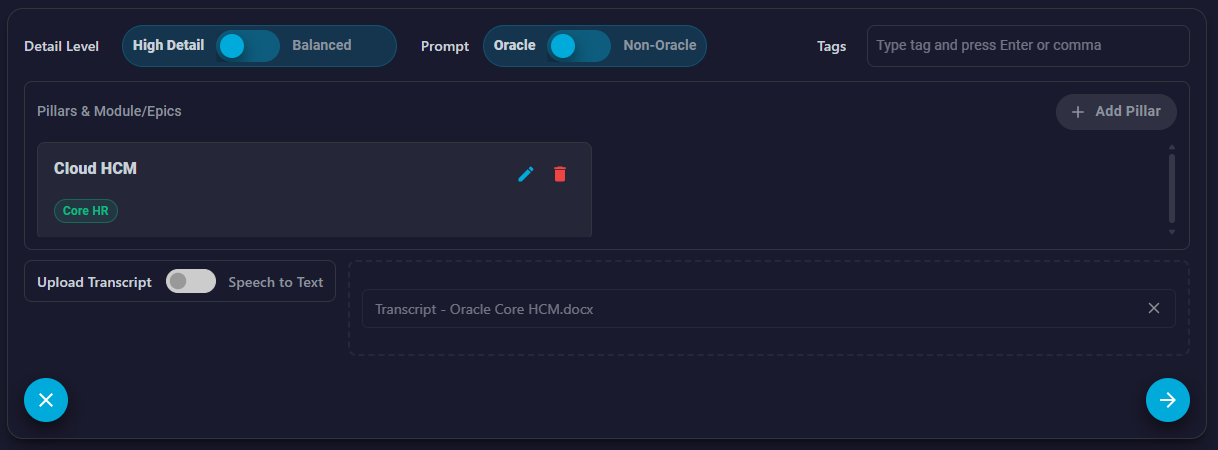
Define how the AI should parse your data. Choose between ‘High Detail’ (individual entries) or ‘Balanced’ (grouped entries). Use the ‘Prompt’ toggle to select ‘Oracle’ or ‘Non-Oracle’ to optimize the parsing engine for your specific software type.
Pro Tip: High Detail is recommended for enterprise RTMs to ensure every unique functional requirement is captured individually for better traceability.
Step 4: Select Pillar and Epic
Requirements must be categorized to be useful. Click the ‘+ Add Pillar’ button and use the modal to select the relevant Pillar (e.g., Cloud HCM) and the corresponding Epic or Module (e.g., Core HR).
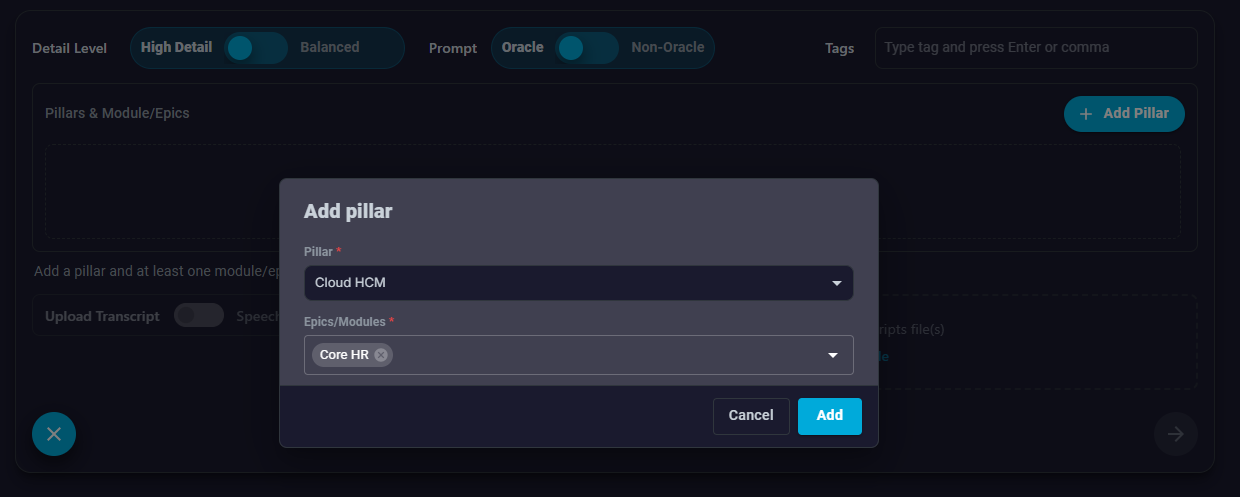
Step 5: Upload the Transcript
With the context defined, provide the source material. You can drag and drop your transcript file into the dashed area or click the upload link to select a .txt, .pdf, or .docx file from your computer.
Pro Tip: Make sure your transcript includes speaker names if possible, as this helps the AI attribute specific requirements to stakeholders.
Step 6: Monitor Transcript Analysis
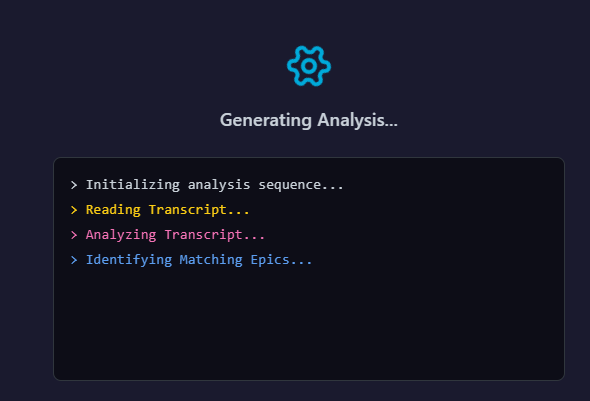
Click the ‘Next’ arrow to begin the processing phase. SaaSMap will display a progress screen as it initializes the sequence, reads the text, and identifies matching Epics based on the conversation content.
Step 7: Confirm and Generate RTM Entries
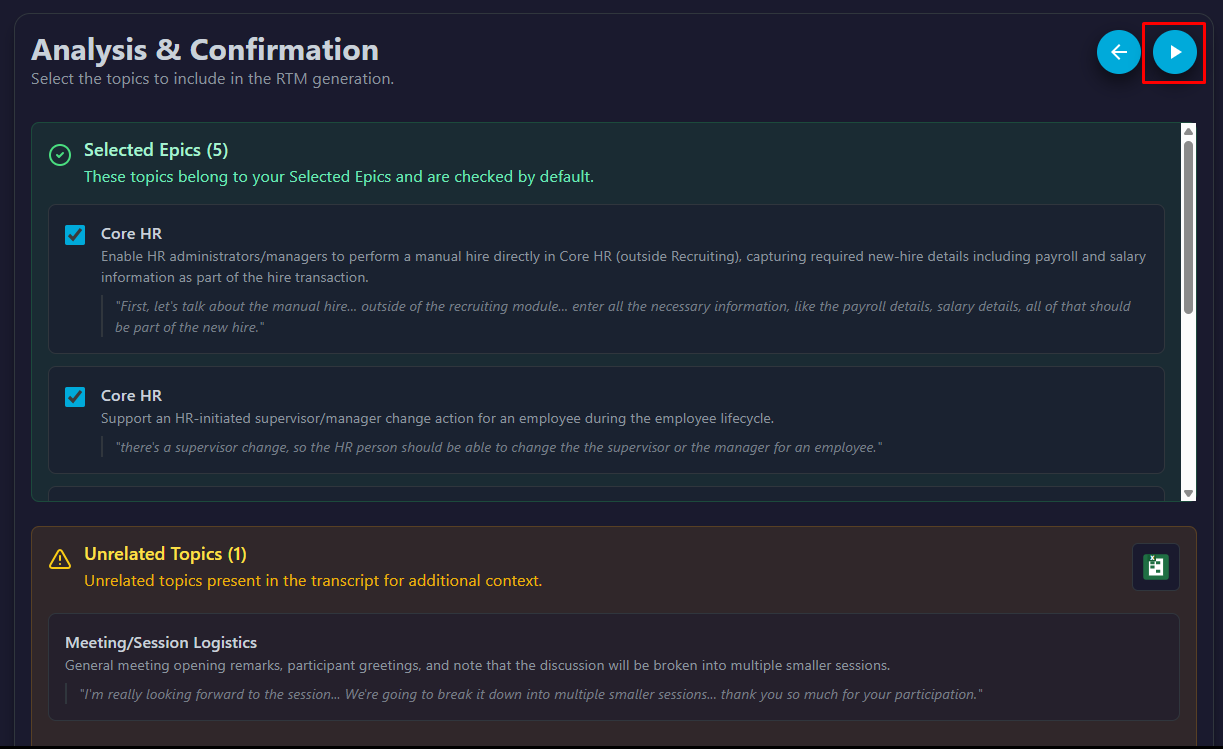
Review the ‘Selected Epics’ identified by the AI. You can uncheck any topics that aren’t relevant. Once satisfied with the selection, click the blue play/generate button in the top right corner to build the RTM entries.
Pro Tip: Check the ‘Unrelated Topics’ section at the bottom to ensure the AI hasn’t accidentally filtered out a critical requirement that was discussed out of context.
Step 8: Review and Save to Backlog
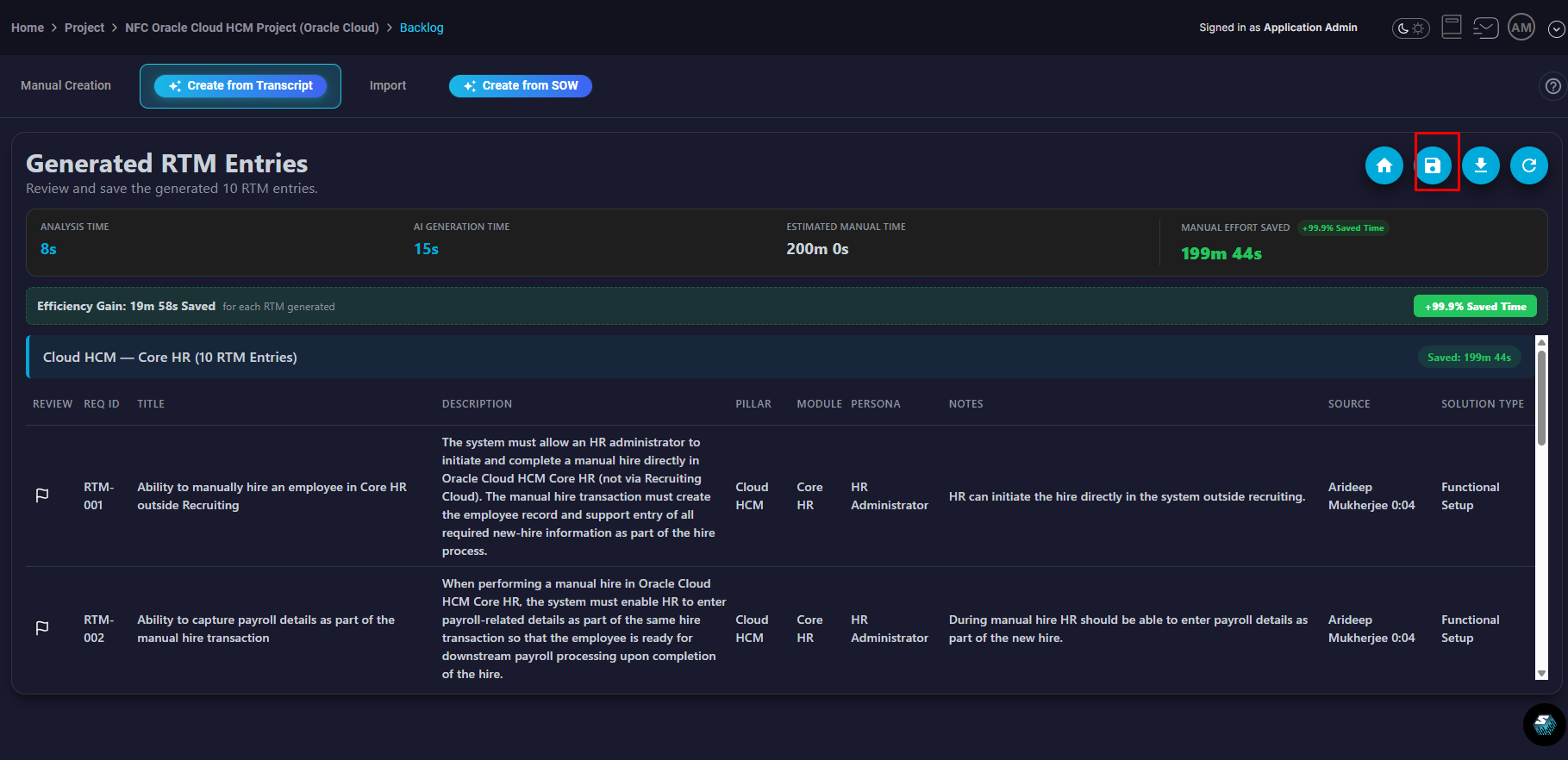
The final screen shows the structured RTM entries with auto-generated Requirement IDs, Titles, and Descriptions. Review the data for accuracy, then click the ‘Disk’ icon in the top right to save these requirements to your project backlog.
Pro Tip: The dashboard also displays ‘Manual Effort Saved,’ which is useful for reporting project PMO efficiency gains.