
Retroactive processing in Oracle Cloud Payroll is among the most robust of any payroll system on the market. When a change is made to a period that has already been paid, the system detects it, recalculates every affected period, compares the new results to the original ones, and places the difference in the current payroll without touching historical data. The Retroactive Entries Report that comes out of that process is accurate. There is little reason to doubt the calculation.
The harder question is whether a payroll team can accept those numbers as they are, without validating them. That question never fully goes away, and it is loudest for organizations that have moved to Oracle from a more manual process. In a manual world, every retro adjustment was worked out by someone on the team, and they could explain each line because they built it. In Oracle, the system does the calculation, but the payroll team still owns the result. Trusting the engine and verifying the outcome are two different things, and responsible payroll teams want both.
Consider what feeds a typical retro run. Someone corrects a time entry from two weeks back. An employee retroactively enters an absence, and hours that were paid as salaried wages now need to be reclassified as absence. A pay increase is approved with a backdated effective date. And for organizations that process payroll in advance, an employee terminated midweek has already been paid through the end of the period.
Every one of these lands in your next payroll as a retroactive entry. The person who entered the change is rarely the person in payroll who has to confirm the result is right. This article walks through how retroactive processing works in Oracle Cloud Payroll, how to read the two delivered reports that support it, what a reviewer still needs in order to validate the results, and why that validation gap tends to cost companies money in one direction more than the other.
Retroactive pay in Oracle Cloud Payroll is the recalculation of prior payroll results because of changes made after the original payroll was calculated. Whether a change triggers that recalculation depends on how the element is set up.
Three pieces of configuration work together. The element must answer Yes to the question “Is this element subject to retroactive changes?” on the Element Additional Details page. The element must be attached to an event group, either the predefined Entry Changes for Retro event group or one you create, which defines the kinds of data changes that raise a retroactive notification. And a retroactive component, defined on the Retroactive Components page, tells the process which target element receives the retroactive result in the current period.
When a qualifying change is saved with an effective date in an already-processed period, Oracle raises a retroactive event notification for the employee with a status of Awaiting Processing. The notification carries a Process Date, which is the date of the earliest change. If a second backdated change comes in with an even earlier date, the Process Date moves back to match. That date matters, because it controls how far back the recalculation goes. Payroll calculations are cumulative, so every period from the Process Date forward is recalculated, not just the period where the change happened.
Two Reports, Two Different Questions
Oracle’s delivered Retroactive Payroll flow runs three steps in order: the Retroactive Notification Report, the Recalculate Payroll for Retroactive Changes process, and the Retroactive Entries Report. The two reports sit on either side of the recalculation, and each answers a different question.
The Retroactive Notification Report answers “what changed, and who will be recalculated?” It is run before the recalculation and lists the unprocessed and deferred notifications for each employee, the entity and attribute that changed, the change effective date, the actual change date, who made the change, and old and new values for attribute-based events. It also groups employees by their retroactive process date, which tells you how many periods each person is about to be recalculated for.
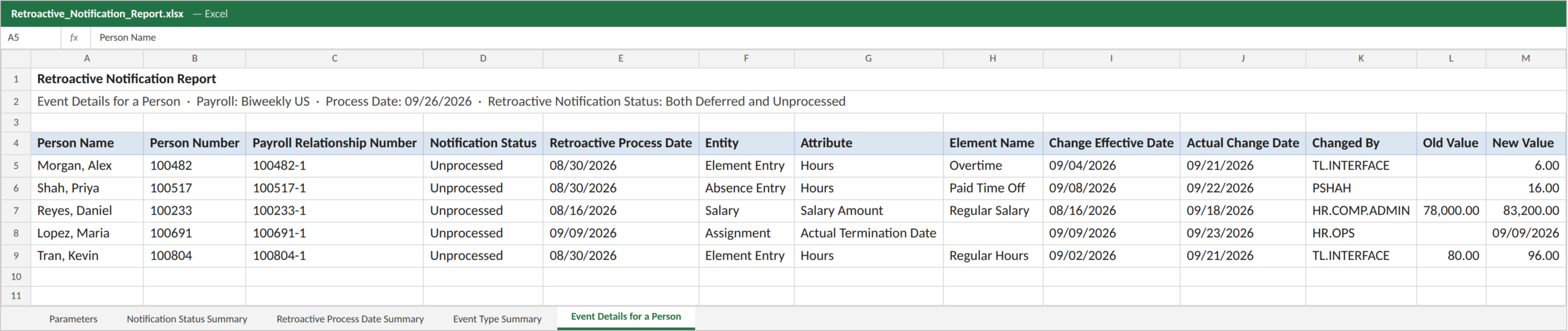
Figure 1. The notification report shows what triggered each retro before anything is recalculated.
The Retroactive Entries Report answers “what did the recalculation produce?” It is run after Recalculate Payroll for Retroactive Changes and shows, for each person, the original calculation result alongside the retroactive entries created by comparing the original result to the recalculated one. Totals are summarized by element classification, by element, and by the original process that was recalculated.
The process never overwrites historical payroll results. It recalculates in the background, compares, and places the difference in the current period.
Reading the Retroactive Entry Type Column
The column that tells you the most about a retro entry is Retroactive Entry Type. It identifies how the entry was created, and there are two possibilities.
A retroactive pay run result is created when the same result exists in both the original run and the recalculated run, but with a different value, or when a result existed in the original run and no longer exists after recalculation. This is the typical outcome of a backdated salary change: the salary element was paid before, it is paid again in the recalculation at a new rate, and the difference comes through as a run result. Run result values are system-calculated and can’t be edited.
A retroactive pay element entry is created when the recalculation produces a result that didn’t exist in the original run at all. This is what you see when an entry arrives in a prior period that wasn’t there when payroll first ran, whether it came from a late time card, a retroactively entered absence, or an entry keyed in or loaded after the fact. Once created, these entries are processed in the current payroll like any other element entry.
Knowing which type you are looking at tells you where to go to verify it. A run result sends you to the change that altered the calculation, such as a rate or a salary. An element entry sends you to the transaction that added something new, such as a time card or an absence.
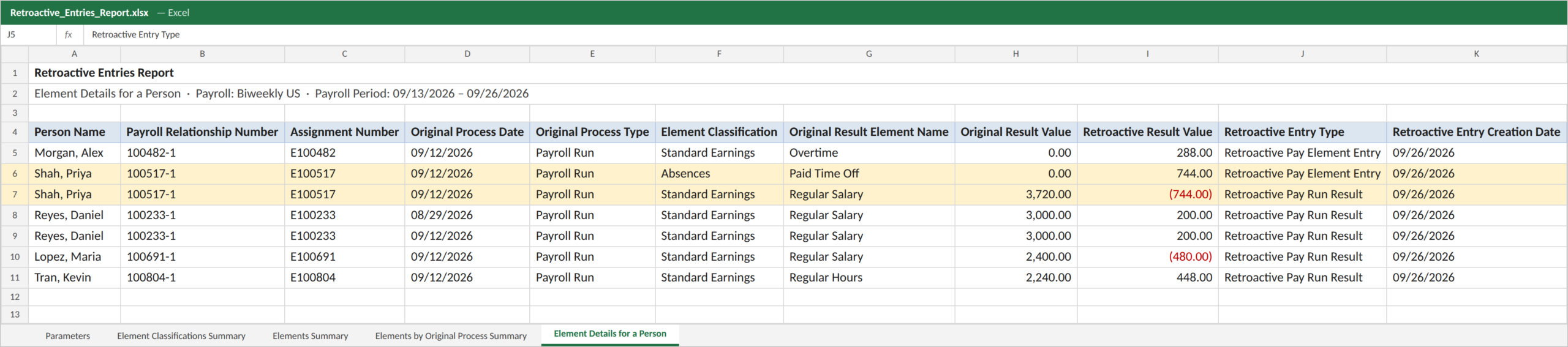
Figure 2. Two entry types, two different places to look. The report shows the amounts, but not the hours or rates behind them.
Controlling How Far Back Retro Reaches
Not every backdated change should be recalculated all the way back. If payroll already corrected an employee manually for a prior period, recalculating that period again will duplicate the correction.
Oracle lets you override this at the employee level. On the Retroactive Events page, you can enter an Override Date on a notification that is still Awaiting Processing. When the notification is processed, the Override Date replaces the Process Date as the start of the retroactive period for that employee. It can be earlier or later than the original date, and it takes precedence over payroll-level limits set through the Earliest Retroactive Processing Date parameter and the Number of months in rolling period for retroactive changes parameter. Override dates can also be loaded in bulk through HCM Data Loader.
Two timing rules are worth building into the payroll calendar. Run Recalculate Payroll for Retroactive Changes immediately before Calculate Payroll, and as close to the cutoff as possible; if it runs after Calculate Payroll, the retroactive adjustments are held until the next period. And review the Retroactive Notification Report every cycle, so an unexpectedly early Process Date is caught before it pulls a year of periods into the recalculation.
What a Reviewer Still Can’t See
The Retroactive Entries Report tells you the element and the amount, and those figures are correct. It does not show the hours behind that amount, the rate that was applied, or how the system arrived at the figure. For a retro on an hourly earnings element, that is the one piece of information a reviewer needs to decide whether the result makes sense.
So payroll teams do what they can. They take the report, go back into the application for each employee, find the time card or absence or salary change that caused the retro, and rebuild the calculation by hand. Compensation retros need a separate check to confirm the change was a true retroactive pay adjustment and not a backdated award processed through retro. For organizations that process payroll in advance, a late termination means looking up the termination date and working out what the system is trying to recover from the employee. All of this happens one employee at a time, inside a payroll window that is already tight.
The Overpayments Nobody Reviews
When time is short, teams triage, and the triage almost always runs in the same direction.
A negative retro means money is being recovered from the employee. Those get attention, because an error there means an employee is underpaid, and underpayments generate complaints, escalations, and in some jurisdictions penalties.
A positive retro means the employee is receiving money. Those tend to pass through with far less scrutiny. Many organizations set an informal threshold below which a positive retro isn’t reviewed at all. In our experience it is common to see that threshold at $1,000, and some organizations set it at $5,000.
The logic is understandable. Nobody is being shorted. But the effect is that the review process is built to prevent underpayment and quietly accepts overpayment. A time correction entered twice, an absence that was reclassified without the matching salary reduction, a retro that reaches back further than it should: each of these produces a positive retro, and each can fall under the threshold. Across a large population and a full year of payroll cycles, those amounts add up, and recovering an overpayment months later is harder, slower, and more uncomfortable than catching it before payday.
Payroll teams know the choice they are making. Either they spend the time reviewing every retro, or they accept the risk that some overpayments go out unchecked. Most don’t have the bandwidth for the first option, so they end up with the second by default.
Reviewing Every Retro, Not Just the Negative Ones
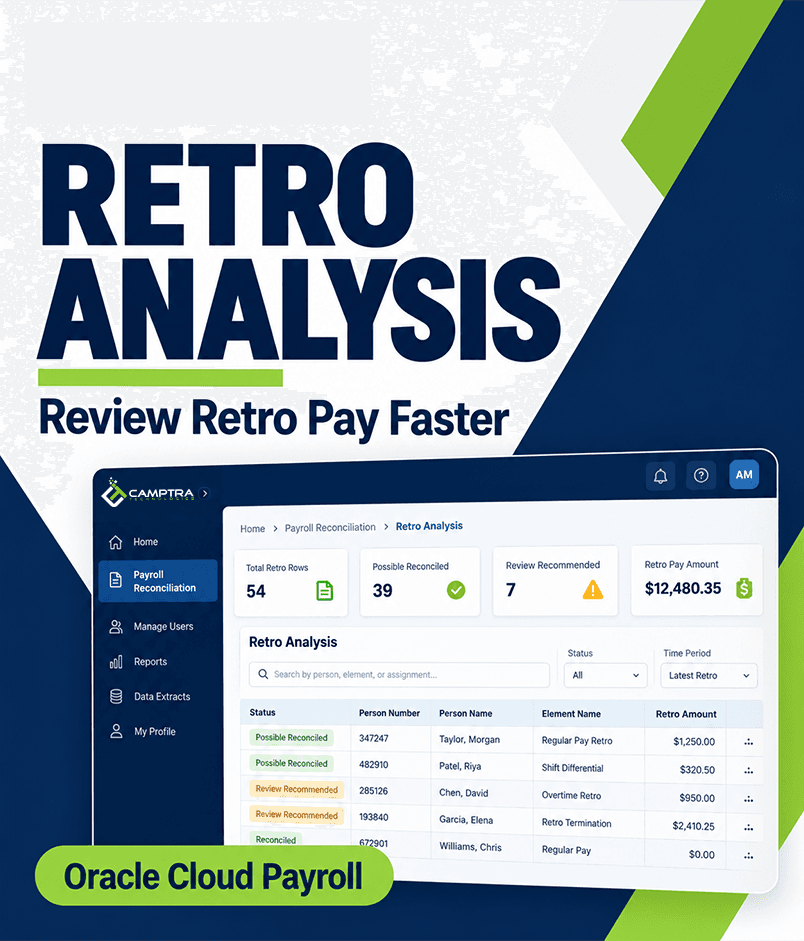
Camptra built the Retro Analysis module in the Payroll Recon Toolset to remove that tradeoff. The aim is to review positive and negative retros with the same rigor, without adding hours to the payroll cycle.
It starts with the data. Camptra provides an enhanced version of the Retroactive Entries Report that includes hours and rates alongside amounts. It can replace the delivered report in your existing payroll flow, so there is no extra step. Two additional reports, one for compensation changes and one for terminations, supply the context behind non-time retros.
The module then analyzes retros by the event that caused them: retroactive time corrections, retroactive absence entries, absence reclassifications, salary and other pay changes, and retroactive terminations, including payrolls processed in advance. An optional time reconciliation compares retro entries against the hours in your time file, whether that file comes from Oracle Time and Labor or a third-party time system, using a mapping of time pay codes to payroll elements.
The output is an analytics snapshot of the retro run and a detailed file that shows which entries reasonably reconcile to the change behind them. For time-related retros, entries are grouped by category. For example, when time off is entered retroactively for a salaried employee, the absence retro is paired with the matching reduction in salary for the same hours and amount, so a missing or mismatched offset is easy to spot. Scenarios that fall outside these patterns are left for manual review, but that list is now a fraction of the full population.
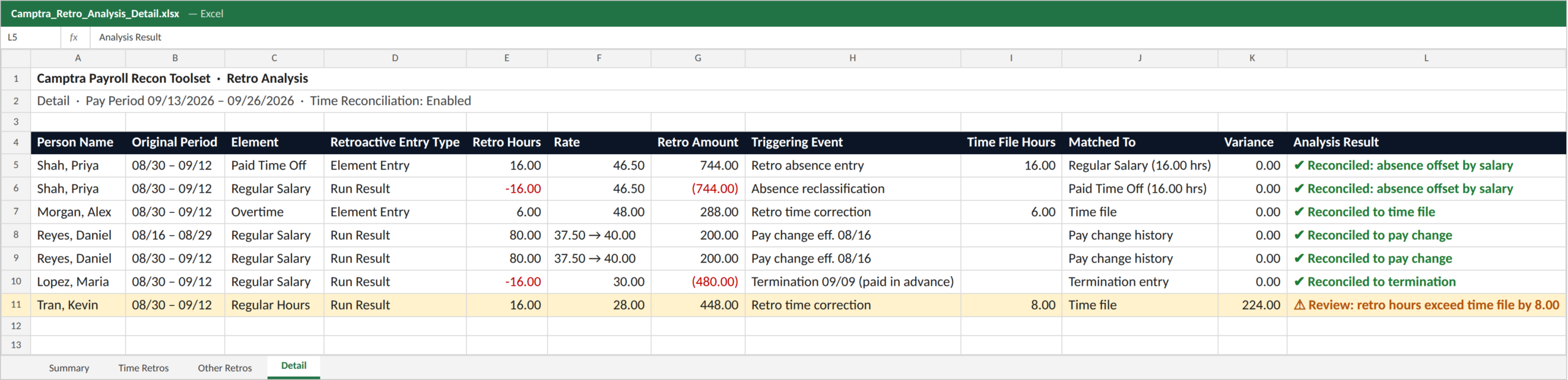
Figure 3. Every retro tied to the event that caused it. The one positive retro that does not match the time file is flagged, even though it falls well under a typical review threshold.
See It With Your Own Retro Data
Retro review doesn’t have to be a choice between reviewing everything by hand and letting positive retros through on trust. For a full walkthrough of the module, from upload to results, watch the six-minute demo below.
If you’d like to see the Retro Analysis module run against your own retroactive entries, reach out to us at [email protected] and we’ll set up time with your team. The Payroll Recon Toolset is available on Oracle Cloud Marketplace.
