

To get payroll costs posting to the right GL accounts and periods in Oracle Global Payroll or PeopleSoft Global Payroll, configure three components in sequence: GP_GL_CHARTFLD (chartfield definitions), GP_GL_GROUP (element groupings), and GP_GL_MAP (account mapping). Then confirm your accounting date setting aligns with finance’s period policy before running GP_GL_PREP in a sandbox.
Start here before your next payroll cycle:
- Verify GP_GL_CHARTFLD is populated with the correct chartfield variables (company, department ID, pay entity, job/position).
- Confirm GP_GL_GROUP captures all earnings, deductions, and accumulators that need separate GL treatment.
- Check GP_GL_MAP for complete element-group and chartfield combinations — any gap produces an unmapped transaction in GP_GL_NO_ACCT.
- Decide and document your accounting date choice: process date (default), date earned, or date paid. Oracle’s setup documentation covers all three options and the Subledger Accounting data role assignments required before transfer.
- Run GP_GL_PREP in a test business unit and review the staging tables before touching production.
PeopleSoft Integration Broker carries the sync messages that pull account numbers and business unit data from Financials. If those messages are inactive, your mapping tables are correct but the GL never receives the data. Camptra Technologies’s Payroll Recon Toolset adds a continuous monitoring layer on top of this configuration, catching unmapped combinations and accounting-date drift before they reach month-end.
Pro Tip: Run GP_GL_PREP against a sample payroll calendar with a small set of control employees first. A clean staging table at that scale tells you the mapping is structurally sound before you process the full population.
Key Takeaways
Correct payroll GL mapping in Oracle requires complete configuration of GP_GL_CHARTFLD, GP_GL_GROUP, and GP_GL_MAP, an agreed accounting date, and a validated posting sequence run in a sandbox before production.
| Point | Details |
|---|---|
| Configure in sequence | Set GP_GL_CHARTFLD, then GP_GL_GROUP, then GP_GL_MAP — skipping steps causes incomplete journals. |
| Align the accounting date | Agree with finance on process date, date earned, or date paid and document the choice before the first live run. |
| Test before production | Run GP_GL_PREP in a sandbox, clear GP_GL_NO_ACCT, then run HPIP_GP_FINALIZE and review HPIP_PRCS_STAT. |
| Activate integration messages | ACCOUNT_CHARTFIELD_FULLSYNCH, BUS_UNIT_FS_FULLSYNC, BUS_UNIT_GL_FULLSYNC, and JOURNAL_GEN_APPL_ID_FULLYSYNC must all be active. |
| Camptra Technologies | Camptra’s Payroll Recon Toolset automates staging-to-GL comparison and exception detection, helping reduce reconciliation time significantly. |
Table of Contents
- What Oracle/PeopleSoft components drive payroll GL mapping?
- How to configure Oracle payroll GL mapping in the right sequence
- Rules and naming practices that cut reconciliation work
- How do you test payroll GL mappings without contaminating the ledger?
- What causes the most common payroll GL posting errors?
- Two mapping scenarios that show what to expect in the GL journal
- How does automated reconciliation complement Oracle GL mapping?
- What payroll and finance teams should coordinate during GL mapping setup
- Camptra Technologies accelerates Oracle payroll GL validation
- Sources
- FAQ
What Oracle/PeopleSoft components drive payroll GL mapping?
Oracle’s Global Payroll integration documentation identifies three core configuration components. Understanding what each one does tells you exactly which screen to open when something posts incorrectly.
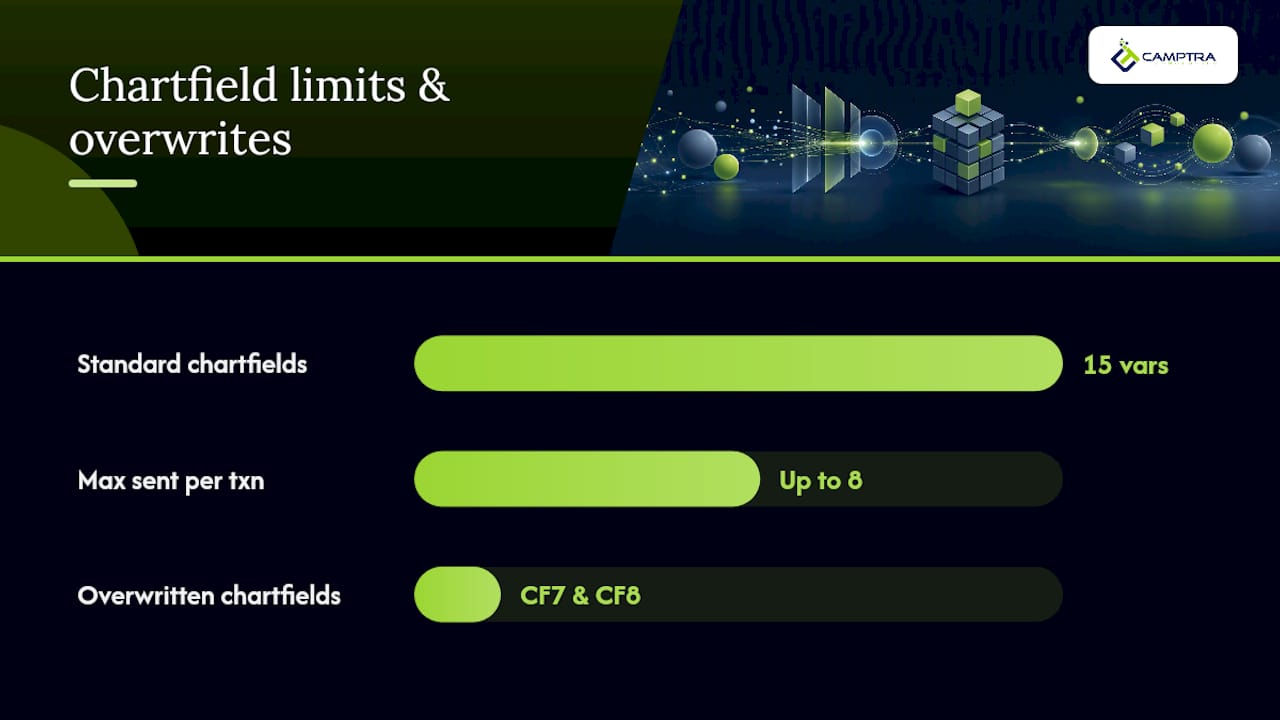
GP_GL_CHARTFLD defines which payee attributes become chartfield values when payroll results transfer to GL. PeopleSoft delivers 15 standard chartfield variables, and the system transmits up to eight attributes per transaction. Common selections are COMPANY, DEPTID, PAY_ENTITY, and JOBCODE, though your chart of accounts structure determines the right combination.
GP_GL_GROUP groups earnings, deductions, and accumulators so similar elements map to the same GL account. Grouping regular salary with overtime, for example, lets both post to a single salary expense account without separate mapping rows for every element.
GP_GL_MAP is where element-group and chartfield combinations resolve to actual GL account numbers. A missing row here is the most common cause of unmapped transactions.
For cost-center mapping, GP_CC_SETUP and GP_CC_MAP derive the cost center from chartfield mappings keyed by pay entity, business unit, and effective date. At posting, chartfield 7 is overwritten with the controlling area and chartfield 8 with the cost center — so never place business-critical data in positions 7 or 8 expecting it to survive the posting process.
| Component | Where to configure | What it sends to GL |
|---|---|---|
| GP_GL_CHARTFLD | Global Payroll > GL Interface > Chartfields | Up to 8 chartfield attribute values per transaction |
| GP_GL_GROUP | Global Payroll > GL Interface > Element Groupings | Grouped element codes for account resolution |
| GP_GL_MAP | Global Payroll > GL Interface > Account Mapping | GL account number per group/chartfield combination |
| GP_CC_SETUP | Global Payroll > GL Interface > Cost Center Setup | Cost center derivation rules by pay entity |
| GP_CC_MAP | Global Payroll > GL Interface > Cost Center Mapping | Controlling area (CF7) and cost center (CF8) values |
How to configure Oracle payroll GL mapping in the right sequence
Follow this order. Skipping steps or reversing the sequence causes integration messages to fire before the mapping tables are ready, producing incomplete journals.
- Set up Chartfields (GP_GL_CHARTFLD). Select the chartfield variables that match your GL segment structure. Set the Pay Entity chartfield consistently across all business units — inconsistency here creates cross-unit posting mismatches.
- Define Element Groupings (GP_GL_GROUP). Group earnings, deductions, and accumulators by GL treatment. Validate that every active element belongs to at least one group.
- Create Account Mapping (GP_GL_MAP). Map each element-group and chartfield combination to a GL account number. Add a default catch-all account for any combination not explicitly mapped.
- Configure Cost Center Mapping (GP_CC_SETUP / GP_CC_MAP). Define derivation rules keyed by pay entity, business unit, and effective date. Confirm chartfields 7 and 8 are reserved for controlling area and cost center.
- Activate integration messages. Using PeopleSoft Integration Broker, activate all four required message channels: ACCOUNT_CHARTFIELD_FULLSYNCH, BUS_UNIT_FS_FULLSYNC, BUS_UNIT_GL_FULLSYNC, and JOURNAL_GEN_APPL_ID_FULLYSYNC. These pull account numbers and business unit data from Financials; without them, the mapping tables never connect to the GL.
- Apply effective dating. Every mapping row carries an effective date. Set future-dated rows before the payroll period they apply to, not after. Document the effective-date policy so the next administrator does not overwrite active rows.
After each step, run a quick validation: confirm the component page saves without errors, spot-check one representative element or chartfield value, and verify the integration message status in Integration Broker before moving to the next step.
Pro Tip: Stage all mapping changes in a test business unit that mirrors production. Export the mapping tables before and after each change and store both versions in version control. When a posting error surfaces three pay periods later, that diff is the fastest path to root cause.
Rules and naming practices that cut reconciliation work
The most durable GL mapping configurations follow a small set of prescriptive rules. Deviating from them rarely saves time and almost always creates month-end rework.
- Mirror your payroll account structure to GL where practical. Aligning payroll cost categories to GL segment combinations reduces the reformatting that causes reconciliation failures. When you need internal costing granularity that finance does not want in the GL, use separate posting accounts rather than loading costing detail directly into the ledger.
- Align the accounting date before the first live run. Oracle allows three choices: process date (the default), date earned, and date paid. Misalignment between payroll’s accounting date and finance’s period policy is one of the most frequent causes of payroll costs hitting the wrong financial period. Document the choice, get finance sign-off, and store it with the mapping configuration. Oracle’s transfer setup documentation details how to configure this parameter.
- Use consistent chartfield naming. A chartfield named “DEPT” in one business unit and “DEPTID” in another breaks automated reconciliation. Establish a naming standard before mapping and enforce it across all pay entities.
- Audit catch-all accounts on a defined cadence. Default accounts preserve process flow for unmapped transactions, but they become permanent cost sinks if no one reviews them. Schedule a monthly review and remediate any balance that has aged more than one period.
- Keep an audit trail for every mapping change. Record the effective date, the prior value, the new value, the owner, and the business reason. This is the evidence your auditors will ask for.
Pro Tip: Add metadata fields to your mapping table documentation: owner name, last-reviewed date, and a one-line purpose statement. When a new team member inherits the configuration, those fields cut onboarding time significantly and prevent well-intentioned “cleanup” that breaks active mappings.
How do you test payroll GL mappings without contaminating the ledger?
Run the full posting sequence in a sandbox business unit before any production run. The process order matters.
- Run GP_GL_PREP (Send Costs to GL) against your test payroll calendar. This Application Engine process builds the accounting lines and loads them into staging tables.
- Open GP_GL_NO_ACCT to view any transactions that could not resolve to a GL account. Every row here represents a missing mapping entry. Resolve all rows before proceeding.
- Review GP_ACC_LINE staging table rows to confirm debit/credit balance and chartfield population.
- Run HPIP_GP_FINALIZE (Finalize Costs for GL) in test mode. This prepares and posts the entries.
- Monitor HPIP_PRCS_STAT for overall process status and HPIP_PRCS_SEG_SEC for segment-level detail. Both pages surface error strings such as “Account Number Mismatch” and “Insert Error” that point to specific mapping gaps or staging table load failures.
- If errors require a full reset, run GP_GL_RESET before rerunning GP_GL_PREP. Running a prepare on top of a failed prepare without resetting produces duplicate accounting lines.
| Process / Page | What it creates or displays | Check on success | Check on failure |
|---|---|---|---|
| GP_GL_PREP | Accounting lines in staging tables | All lines balanced; no rows in GP_GL_NO_ACCT | Rows in GP_GL_NO_ACCT; review missing GP_GL_MAP entries |
| GP_GL_NO_ACCT | Unmapped transactions | Zero rows | Each row = a missing mapping combination |
| HPIP_GP_FINALIZE | Prepared/posted journal entries | Status = Posted | Error string in HPIP_PRCS_SEG_SEC |
| HPIP_PRCS_STAT | Overall process status | Success with no warnings | Error or Warning status; drill to segment log |
| GP_GL_RESET | Clears staging for rerun | Staging tables cleared | Run before any rerun after a failed prepare |
For a safe pre-production run, use a sample payroll calendar, a set of control employees covering all active chartfield combinations, and at least one chunking scenario if your payroll volume triggers GL chunking. Verify that clearing accounts are configured before testing chunked postings.
What causes the most common payroll GL posting errors?
Most posting failures trace to four root causes. Knowing the cause narrows the fix to a specific table or parameter.
- Unmapped chartfield/group combinations. A new department, a new earnings code, or a reorganization creates combinations that GP_GL_MAP does not cover. The symptom is rows in GP_GL_NO_ACCT. Fix: add the missing mapping row with the correct effective date, then rerun GP_GL_PREP after GP_GL_RESET.
- Accounting date misalignment. When payroll uses process date and finance expects date earned, costs land in the wrong period. Fix: align the accounting date parameter, repost the affected period, and document the agreed setting.
- Chunking limits and missing clearing accounts. Large payroll volumes trigger GL chunking. Without a configured clearing account, chunked segments fail to balance. Fix: configure the clearing account in GL setup and verify it appears in HPIP_PRCS_SEG_SEC segment logs.
- Integration Broker transmission errors. If ACCOUNT_CHARTFIELD_FULLSYNCH or BUS_UNIT_GL_FULLSYNC are inactive or errored, account numbers do not sync from Financials. Fix: check Integration Broker channel status and rerun the full sync before the next prepare.
For any error, the triage sequence is: GP_GL_NO_ACCT first, then GP_GL_MAP entries, then chartfield value sets and effective dates, then HPIP_PRCS_SEG_SEC for segment-level error codes.
Pro Tip: Maintain a “control payroll” dataset of 10–15 test employees that covers every active chartfield combination in your production environment. When a mapping bug surfaces, reproduce it against this dataset in minutes rather than hunting through thousands of production records.
Two mapping scenarios that show what to expect in the GL journal
Scenario 1: Regular salary expense
A “Regular Salary” earnings element is assigned to element group EARN_SALARY. The chartfield combination is COMPANY + DEPTID + PAY_ENTITY. GP_GL_MAP resolves this combination to GL account 6100 (Salary Expense). The expected journal entry is a debit to 6100 and a credit to the payroll liability clearing account. Reversals and voids map to the same account with reversed debit/credit signs unless a separate reversal account is configured.
Scenario 2: Benefit deduction liability
A medical deduction element is assigned to group DED_BENEFITS. The chartfield combination is COMPANY + EMPLID + COST_CENTER. GP_GL_MAP resolves this to GL account 2200 (Employee Benefits Payable), a liability account. The expected behavior is a credit to 2200 at payroll run and a debit when the benefit payment clears. Effective dating on this mapping row must match the benefit plan’s enrollment effective date to avoid posting to a prior-period liability account.
| Element/Group | Chartfield values | GL account type | Expected posting behavior |
|---|---|---|---|
| Regular Salary / EARN_SALARY | COMPANY, DEPTID, PAY_ENTITY | Expense (6100) | Debit expense; credit payroll clearing |
| Medical Deduction / DED_BENEFITS | COMPANY, EMPLID, COST_CENTER | Liability (2200) | Credit liability; debit on payment clearing |
How does automated reconciliation complement Oracle GL mapping?
Correct configuration gets payroll costs into the GL. Automated reconciliation confirms they arrived correctly, every cycle, without a spreadsheet-heavy manual review.
Camptra Technologies’s Payroll Recon Toolset integrates directly into the Oracle Cloud Payroll validation workflow. Before posting, it compares GP_ACC_LINE staging totals to expected GL journal loads and flags any delta. After posting, it reconciles payroll GL results against the source payroll run, surfacing chartfield distribution anomalies that a manual review would miss in high-volume environments.
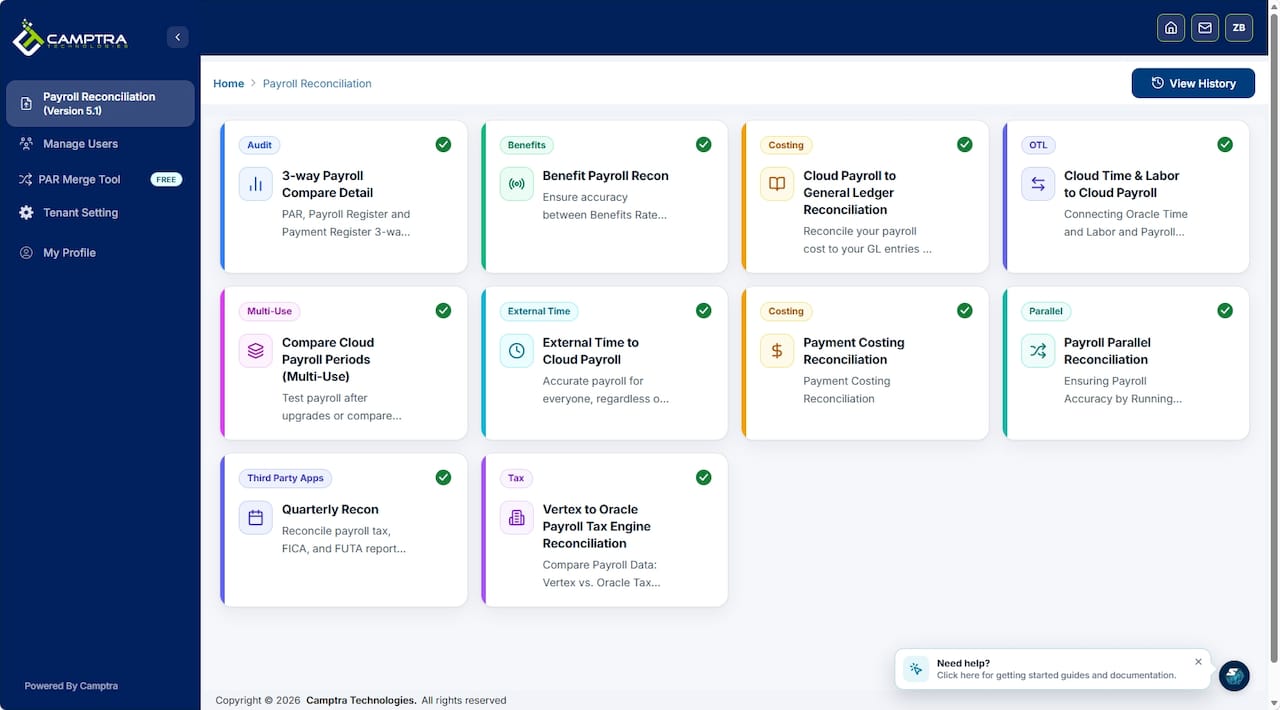
Customers using the Payroll Recon Toolset have reported significant reconciliation time reductions, which translates directly to earlier financial close and fewer audit findings tied to unreconciled payroll postings.
Specific tasks the tool handles in the GL mapping workflow:
- Detect GP_GL_NO_ACCT hits automatically and route them to the responsible mapping owner.
- Compare GP_ACC_LINE staging totals to GL journal loads and alert on any variance above a defined threshold.
- Monitor accounting-date drift across payroll periods and flag when the configured date deviates from the documented policy.
- Alert when chunking or clearing-account segmentation failures cause unbalanced journal segments.
- Produce audit-ready exception reports tied to specific payroll calendar IDs and GL business units.
For teams managing multi-currency payroll in Oracle Cloud HCM, the tool also tracks currency conversion variances between the payroll ledger and the GL, a reconciliation gap that manual processes rarely catch consistently. Reviewing common payroll compliance mistakes alongside your mapping governance helps close the remaining exposure.
What payroll and finance teams should coordinate during GL mapping setup
Payroll GL mapping fails most often not because of technical errors but because payroll and finance configured their respective systems independently and discovered the mismatch at month-end.
- Assign a mapping owner on each side. Payroll owns the element groupings and chartfield definitions; finance owns the GL account set and period policy. Both owners must sign off before any mapping row goes live.
- Get finance to approve the GL account set before mass-mapping. Mapping 200 elements to an account that finance has not yet activated in the ledger produces 200 posting failures on the first run.
- Agree on the accounting date in writing. Document whether the team uses process date, date earned, or date paid, and store that decision with the mapping configuration. Revisit it at every fiscal year-end.
- Schedule a mapping freeze window near month-end. Changes to GP_GL_MAP during an active payroll period can affect in-flight transactions. A freeze window of T-3 business days before close prevents last-minute changes from creating unbalanced journals.
- Maintain a shared control payroll dataset. Both payroll and finance should be able to run the same test employees through GP_GL_PREP and agree on the expected output before any production run.
- Version control mapping table exports. Store a dated export of GP_GL_MAP, GP_GL_GROUP, and GP_GL_CHARTFLD after every change cycle. This is the audit trail that satisfies both internal audit and external reviewers.
Camptra Technologies accelerates Oracle payroll GL validation
Configuring GP_GL_CHARTFLD, GP_GL_GROUP, and GP_GL_MAP correctly is the foundation. Catching what slips through that foundation before it reaches the auditors is where Camptra Technologies delivers measurable value for Oracle Cloud Payroll teams.
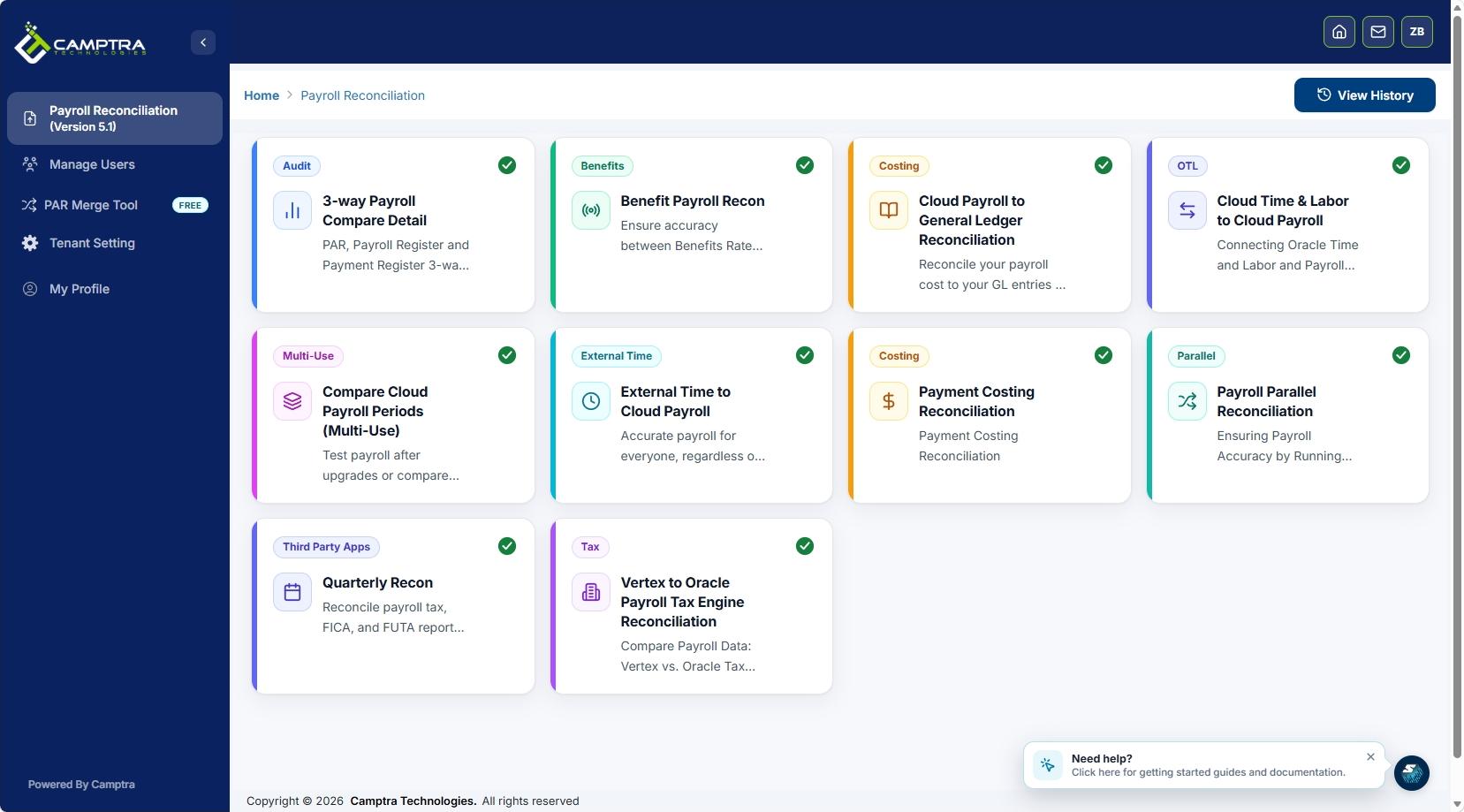
Camptra’s Payroll Recon Toolset automates the reconciliation tasks that consume the most time in the Oracle GL posting workflow: comparing staging table totals to GL journal loads, detecting unmapped combinations before they age into suspense balances, and producing audit-ready dashboards tied to specific payroll calendar IDs. Teams running the tool on a scheduled pre-close cadence, typically T-3 business days before month-end, catch mapping drift before it affects the financial close. The result is faster close, fewer suspense postings, and evidence packages that satisfy auditors without manual assembly.
Explore Camptra’s case studies to see reconciliation time reductions and audit outcomes from Oracle Cloud Payroll environments, or visit the Payroll Recon Toolset page to request a demo.
Sources
- Payroll Setup Tasks to Transfer Costs to General Ledger
FAQ
What are the three core components for Oracle payroll GL mapping?
The three core components are GP_GL_CHARTFLD (chartfield definitions), GP_GL_GROUP (element groupings), and GP_GL_MAP (account mapping). Configure them in that sequence so element-group and chartfield combinations resolve correctly to GL account numbers.
What does GP_GL_NO_ACCT show?
GP_GL_NO_ACCT displays every payroll transaction that GP_GL_PREP could not map to a GL account. Each row points to a missing or incorrectly effective-dated entry in GP_GL_MAP.
Which accounting date option should you choose in Oracle Cloud?
Oracle allows process date (the default), date earned, or date paid. The right choice depends on finance’s period policy; the key requirement is that payroll and finance agree on the same option and document it before the first live transfer.
How does Camptra Technologies fit into the Oracle GL posting workflow?
Camptra’s Payroll Recon Toolset runs pre-post and post-post checks against Oracle Cloud Payroll staging tables and GL journals, automatically detecting unmapped combinations and variance exceptions.
Why must integration messages be activated before mapping goes live?
PeopleSoft Integration Broker uses ACCOUNT_CHARTFIELD_FULLSYNCH, BUS_UNIT_FS_FULLSYNC, BUS_UNIT_GL_FULLSYNC, and JOURNAL_GEN_APPL_ID_FULLYSYNC to pull account numbers and business unit data from Financials. Without active message channels, the mapping tables exist but the GL never receives the payroll data.
Recommended
- Bridging the Gap Between Payroll and Finance: The Oracle Cloud Payroll Costing Reconciliation Tool | Camptra Technologies
- Oracle Payroll Activity Center and Multiuse Reconciliation: A Complementary Approach for Modern Payroll Teams | Camptra Technologies
- Payroll Reconciliation Steps for Oracle Teams: 2026 Guide | Camptra Technologies
- Enterprise Payroll Controls Checklist for Oracle Cloud Teams | Camptra Technologies
